
To enable the external connector integration, you must complete setup steps on both the external connector's side and the Loop side. Complete these three simple steps to get set up.
Phase 1: External Connector Requirements (ReturnBear)
The merchant must ensure the following are set up on the external connector's side:
- Shopify App Install: The merchant must install the Return Bear app on their Shopify store. https://apps.shopify.com/returnbear
- Location Provisioning: The merchant must be provisioned to allow returns from the locations where returns will be accepted.
- Shipping Label Setup: The merchant must be set up to generate shipping labels if that service is required.
Phase 2: Loop Admin Setup
You must enable three key settings within the Loop Admin to allow the ReturnBear external connector to provide labels.
Step 1: Enable External Connector on the Return Policy
- Go to the Loop Admin: Policy Settings > Return Policies.
- Select and jump into the relevant return policy for each country.
- Under the options to generate labels, select the external connector option (instead of the loop shipping service).
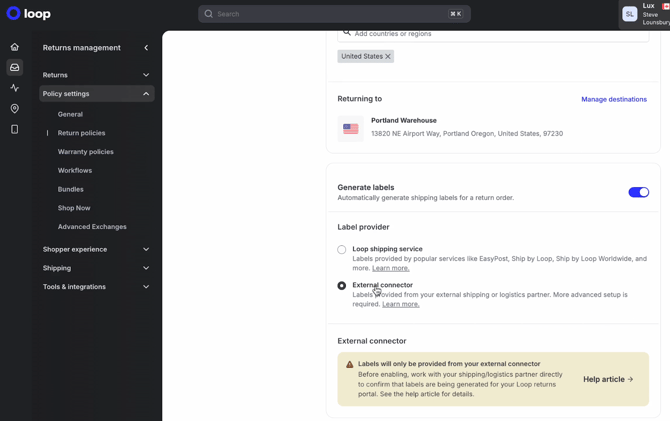
- Note on Enabling: If you are not seeing this feature, it must be enabled by Loop. You must contact Loop (or we can try to contact Loop on your behalf) to have a specific setting flipped on the store.
Step 2: Generate and Provide the API Key & Secret Web Hook to ReturnBear
The merchant needs to generate an API key for the ReturnBear external connector to use.
- Navigate to Returns Management > Tools and Integration > Developer Tools within the Loop admin.

- Click to generate an API key.
- Check all the boxes under scopes (permissions) for the API key.
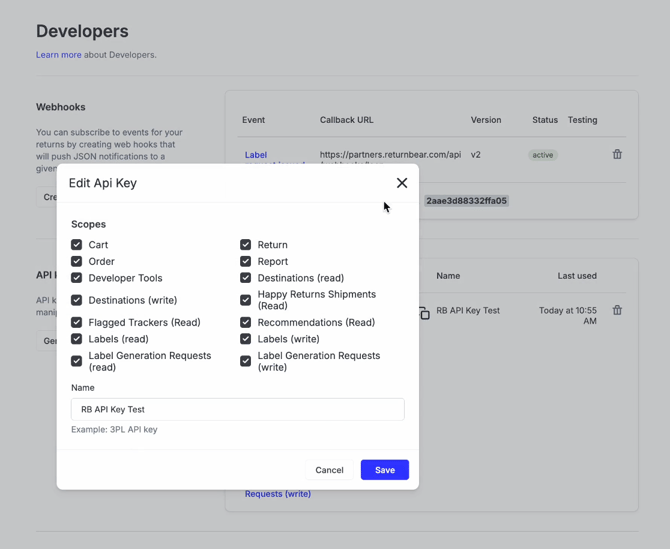
- Give the key a name (e.g., "ReturnBear API key"); the name itself does not matter.
- Once generated, copy the API key and put it into an email.
- Within the same Developer Tools section (where the API key was generated), locate the webhook secret.
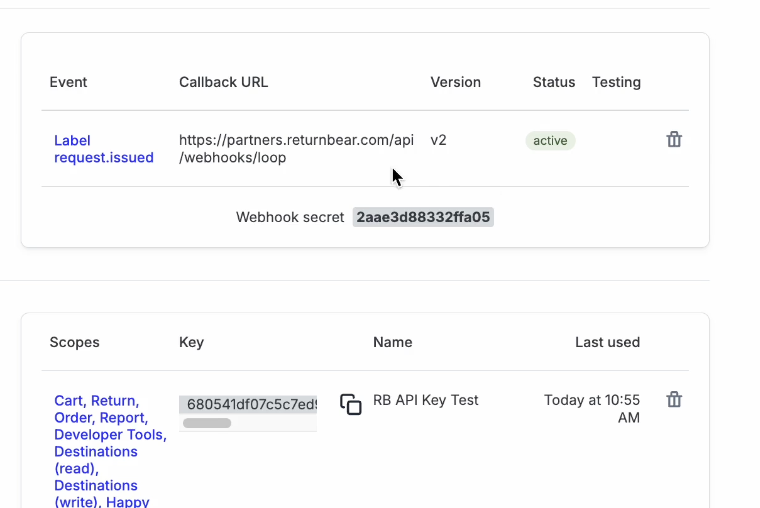
- Copy the API key and the Webhook Secret, and include them along with the Merchant Name in an email to your onboarding partner at ReturnBear or engineering@returnbear.com. If you prefer, you can share the API key and webhook secret via 1Password to the ReturnBear email instead.
- Note: This webhook secret is used by the external connector to validate webhooks coming from Loop. Merchants do not need to create webhooks themselves; the external connector handles that through the API once the key is provided.