
You can access this page directly from your Assistant dashboard whenever you have a "Product Data Issues" alert. You can also access it via the left navigation under the Logistics Compliance menu item in the left navigation.
Why is this data important?
For any return to be shipped from a ReturnBear warehouse back to your facility (a process we call fulfillment), it must have complete data for customs purposes. This includes:
-
Weight (must be greater than zero)
-
Price (must be greater than zero)
-
Country of Origin
-
HS Code (Harmonized System Code)
-
Manufacturer Information (full details used to make up an MID)
Products missing any of this information are considered ineligible for fulfillment and will remain at our warehouse, potentially incurring storage fees, until the data is provided. Items will begin to incur storage fees if they do not have their data updated within 15 days of a missed fulfillment.
Understanding the Product Data Page
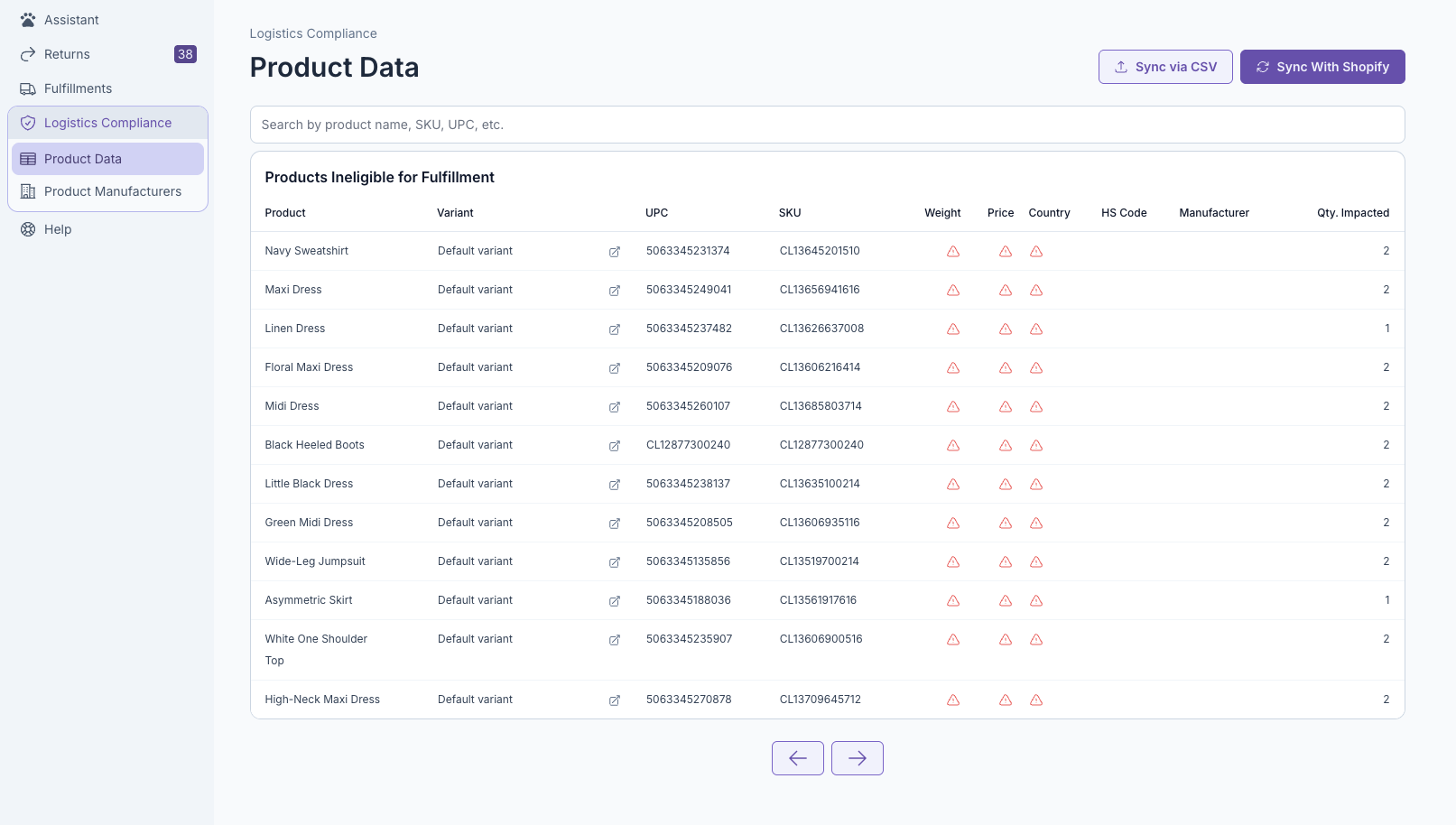
When you navigate to this page, you will see a table listing all products that are currently ineligible for fulfillment due to missing data.
Here's a breakdown of the key columns:
-
Product, Variant, UPC, SKU, Weight, Price, Country, HS Code: Identifiers for your product. All of this information is pulled from Shopify if available.
-
Manufacturer: The manufacturer for the product. This information must be managed in ReturnBear and linked to each product.
-
Qty. Impacted: This shows the total number of individual units of that specific product that are currently at our warehouse and cannot be shipped due to the missing data. Each inventory item that misses the SLA for product information to be updated will incur additional storage fees.
3 Ways to Update Your Product Data
You have three flexible options for adding or correcting the required information.
1. Edit Products Individually in the Table
This method is ideal for quick, one-off updates.
-
Click anywhere on the row of the product you wish to edit.
-
An "Edit Product Variant" window will appear.
-
Fill in all the required fields. The fields highlighted in red are mandatory for customs clearance.
-
Click Save.
2. Update in Bulk with a CSV file
This is the most efficient way to update many products at once.
-
Click the Sync via CSV button at the top right of the page.
-
Select Download Template. This will generate and download a CSV file containing only the products with missing data.
-
Open the CSV file in a spreadsheet program (like Excel or Google Sheets) and fill in the missing values for each product.
-
Save your edited CSV file.
-
Return to the Product Data page, click Sync via CSV again, and select Upload CSV to upload your completed file. The system will process the file and update the product information.
3. Sync Your Data from Shopify
If you manage most of this data directly in Shopify, you can pull the updates into ReturnBear.
-
Log in to your Shopify Admin.
-
Navigate to your products and update the necessary fields (Weight, Price, Country of Origin, and HS/Tariff Code).
-
Once your data is updated in Shopify, return to the Product Data page in your ReturnBear Admin.
-
Click the Sync With Shopify button. This will initiate a sync that pulls the latest product information from your Shopify store, updating the corresponding fields in ReturnBear.
Important Note: Manufacturer information cannot be pulled from Shopify. You must add or assign a manufacturer to your products using either the individual edit modal or the CSV upload method within ReturnBear.
Managing Your List of Manufacturers
The "Select a manufacturer" dropdown in the edit window pulls from your managed list of manufacturers. See Logistics Compliance: Product Manufacturers