If a situation arises where an email needs to be resent to a customer, open their return case in the ReturnBear admin and click on the  icon next to the email that needs to be resent.
There are currently 4 types of emails that can be resent to customers:
Where the icon appears in the return timeline determines which email will be resent to your customer.
Resending return case approved emails
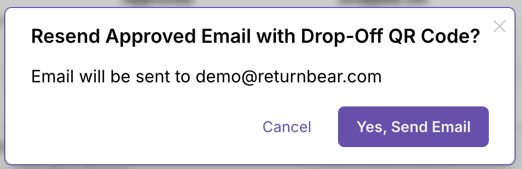
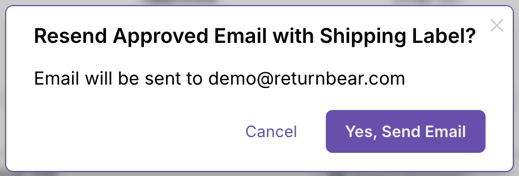
To resend a customer the email notifying them that their return request has been approved, and to resend them their shipping label (mail-in) or QR code (drop-off), click the icon under Approved:

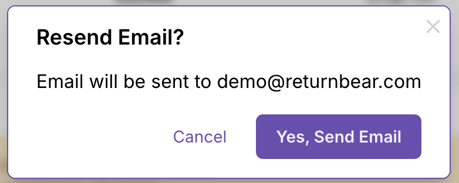
You will be prompted to confirm the email address that the email will be sent to. Click Yes, Send Email to resend the email to your customer:
Resending drop-off confirmation emails
To resend a customer the email notifying them that their return has been successfully dropped-off at a return point, click the icon under Dropped-off:

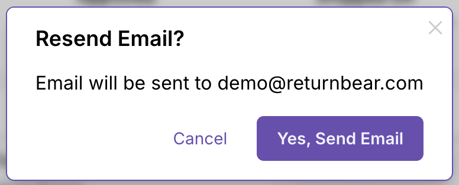
You will be prompted to confirm the email address that the email will be sent to. Click Yes, Send Email to resend the email to your customer:
Resending return request denied emails
To resend a customer the email notifying them that their return request has been denied, click the icon under Denied:

You will be prompted to confirm the email address that the email will be sent to. Click Yes, Send Email to resend the email to your customer.
How to tell when an email has been resent successfully
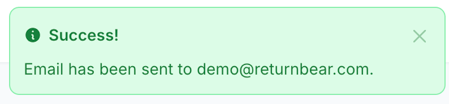
You will be able to determine that an email has been sent successfully when a notification similar to the one below appears in the top right corner of your screen: