
This guide covers submitting return requests using the ReturnBear Return Merchandise Authorization (RMA) Portal. For instructions on submitting returns using the legacy Consumer portal, click here.
Step 1: Locate Order
The ReturnBear Merchandise Authorization (RMA) Portal can be accessed by:
- Customers from a link on your website
- Merchants through the Create Return button in the ReturnBear Admin
- Accessing the portal this way launches it in Admin Mode
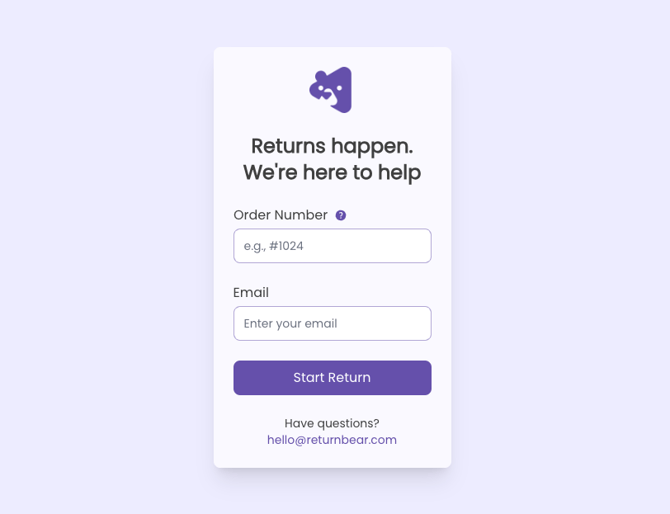
Enter the Order Number and Email, then click Start Return.
Step 2: Select Items
On the Select Items page, all items in the order will be displayed:
- Items eligible for return will be listed under Items
- Items ineligible for return will be listed under Non-returnable items
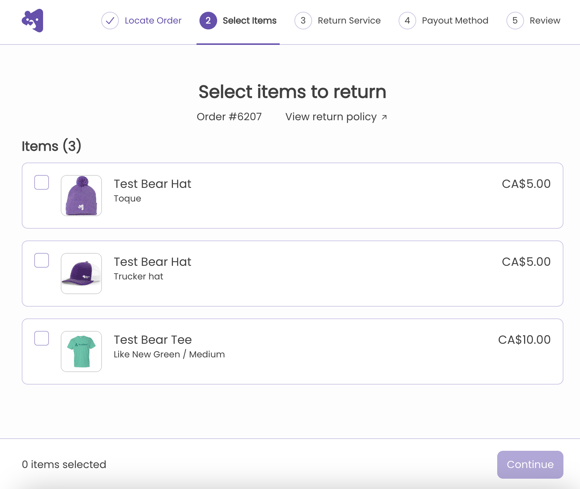
Working one at a time, select the item to be returned.
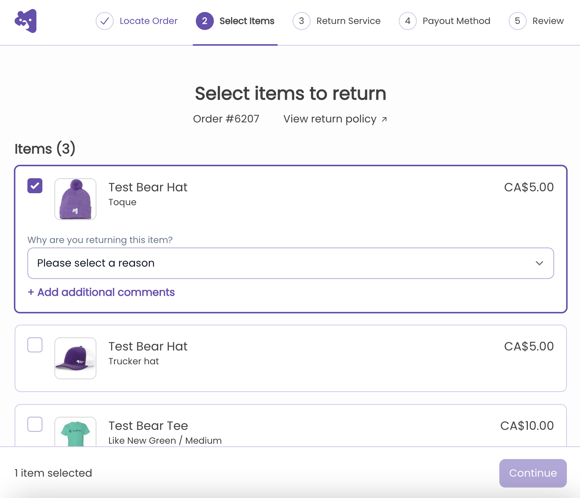
After the item is selected:
- Choose the return reason using the Why are you returning this item? drop-down menu
- (Optional) Click + Add additional comments to add comments about the item
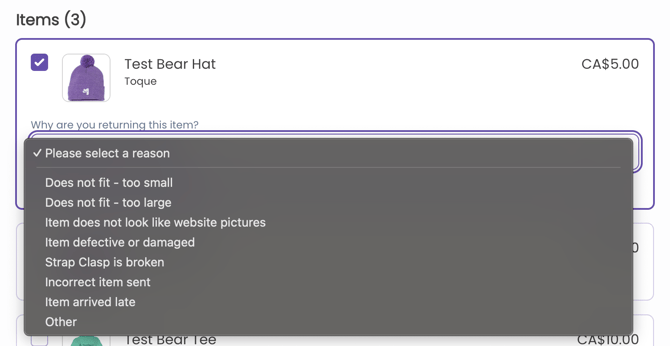 |
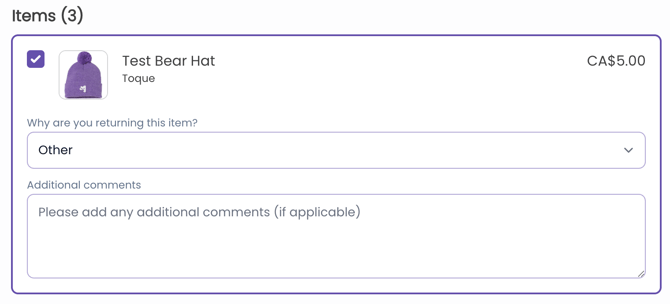 |
Repeat these steps for as many items as are being returned. Once all items have been selected, click Continue.
The Return Policy Checklist is displayed with a list of criteria configured based on the applicable return policy:
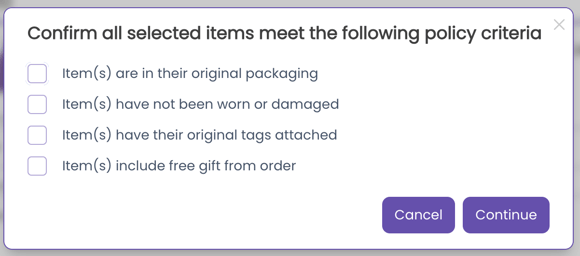
Check off all criteria that reflect the condition of the items being returned. If one or more of the items being returned do not meet a specific criteria, leave that box unchecked.
If all items being returned meet all of the criteria on the Return Policy Checklist, the return will be automatically Approved upon submitting the request. If any items being returned do not meet all of the criteria on the Return Policy Checklist or if any of the boxes are left unchecked, the return will be Pending upon submitted the request. Pending returns require merchant approval. For more information see Approve Requests.
Click Continue.
Step 3: Return Service
On the Return Service page, select the preferred return service:
- Return for instant refund
- Return by courier, refund in 5-7 days
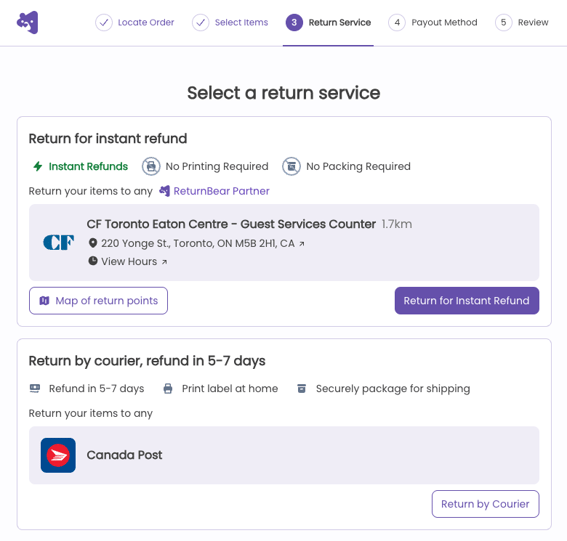
Return for instant refund
This option offers a printing- and package-free return experience. Customers can return their items to any ReturnBear Partner. The return point closest to the customer will be automatically selected, however clicking Map of return points allows customers to browse and select other locations if needed:
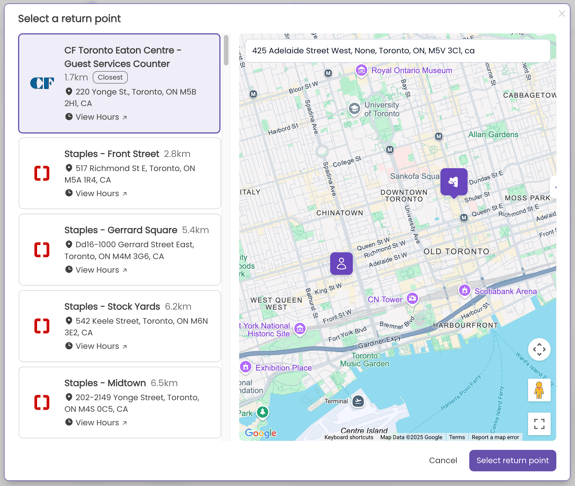
Regardless of which return point is chosen at this step, customers are always able to return their items to any ReturnBear Partner. A complete list of return points can be accessed here.
If a customer's return passes verification at a return point, they will receive their refund instantly. If a customer's return fails verification at a return point, they will be notified to expect a delay. See Resolve Exceptions for more details.
Click Return for Instant Refund to select this return service. If selecting an alternate ReturnBear return point from the map, click Select return point.
Return by courier, refund in 5-7 days
This option requires customers to print their shipping label at home and securely package their return for shipping. The courier their shipping label is issued with will be displayed in the portal and they can return their parcel to any of the courier's locations.
Click Return by Courier to select this return service.
Step 4: Payout Method
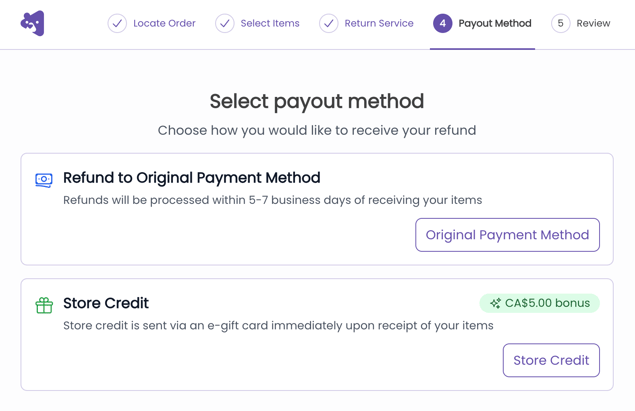
On the Payout Method page, select the preferred payout method:
- Refund to Original Payment Method
- Store Credit
Step 5: Review
On the Review page, review the details of the return:
Return for instant refund
|
Return by courier
|
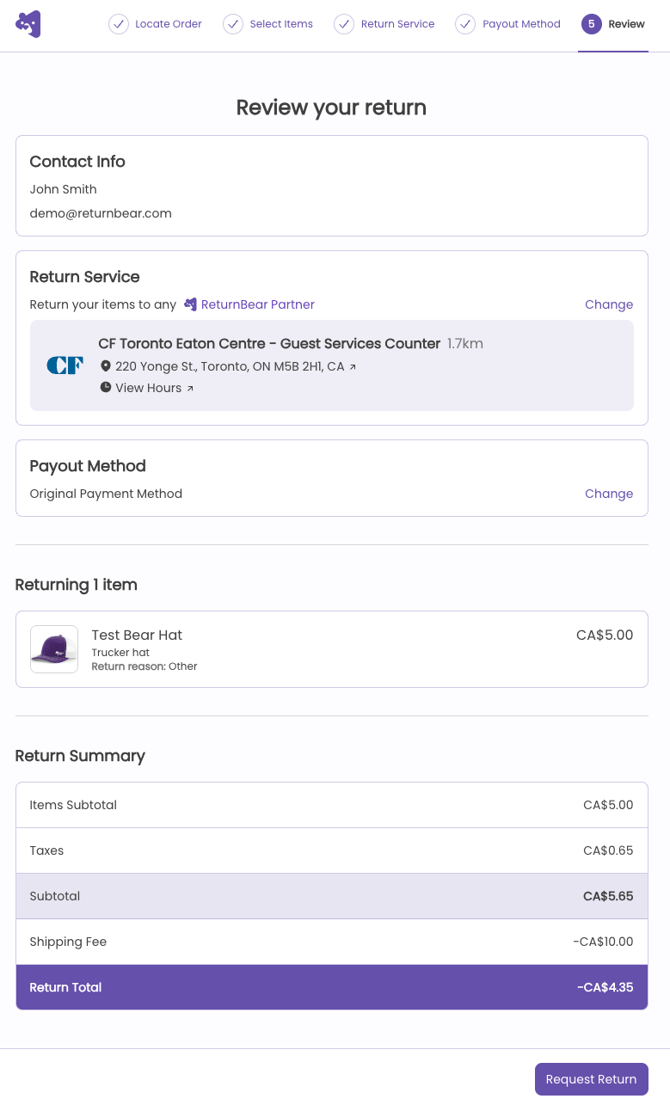
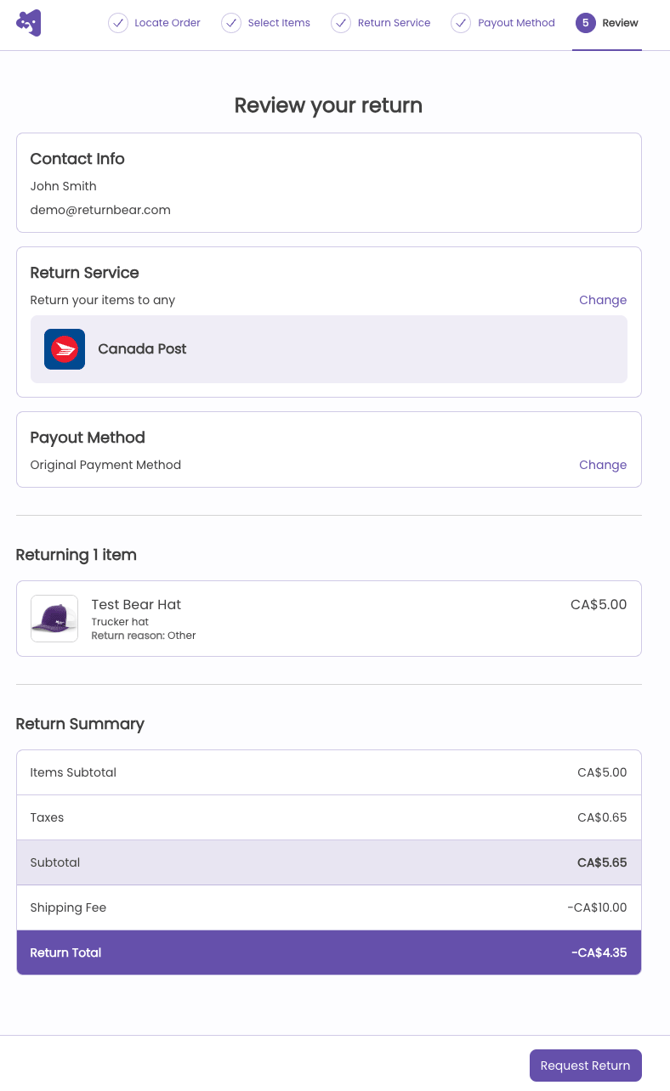
- Contact Info: Customer name and email address, pulled from their order details
- Return Service: Return Service selected in Step 3
- Can be adjusted by clicking Change
- Payout Method: How the customer will be reimbursed for their return
- The ReturnBear RMA Portal currently supports refunds to Original Payment Method only
- Item(s) being returned: Item(s) selected in Step 2
- Return Summary: A detailed breakdown of the expected refund
The Item(s) being returned and Return Service can be modified before submitting the return request by clicking on the corresponding step at the top of the screen.
Click Request Return to submit the return request.
Return is automatically Approved
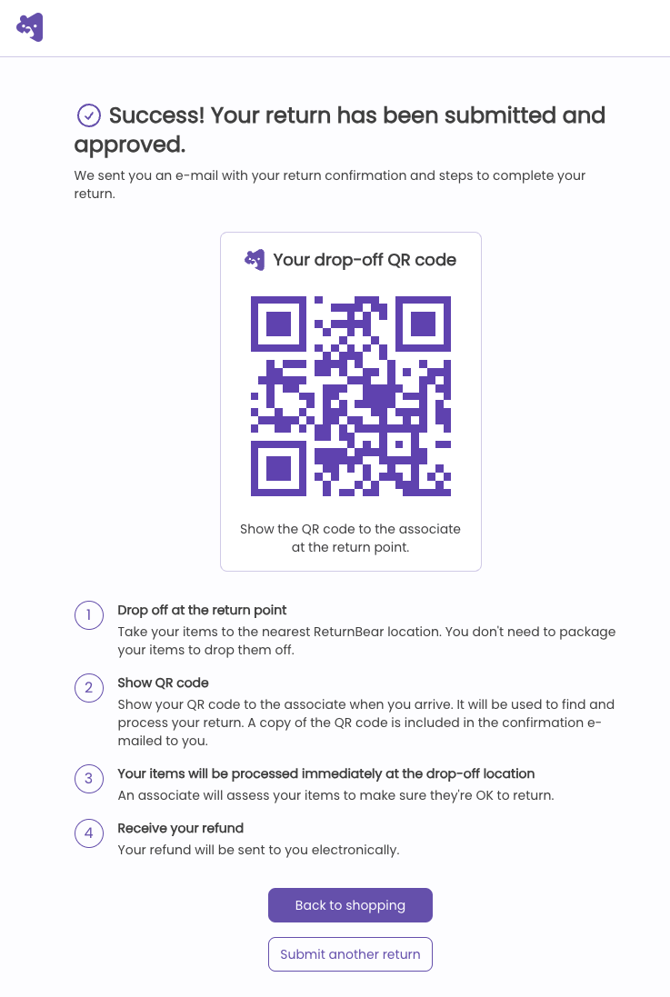
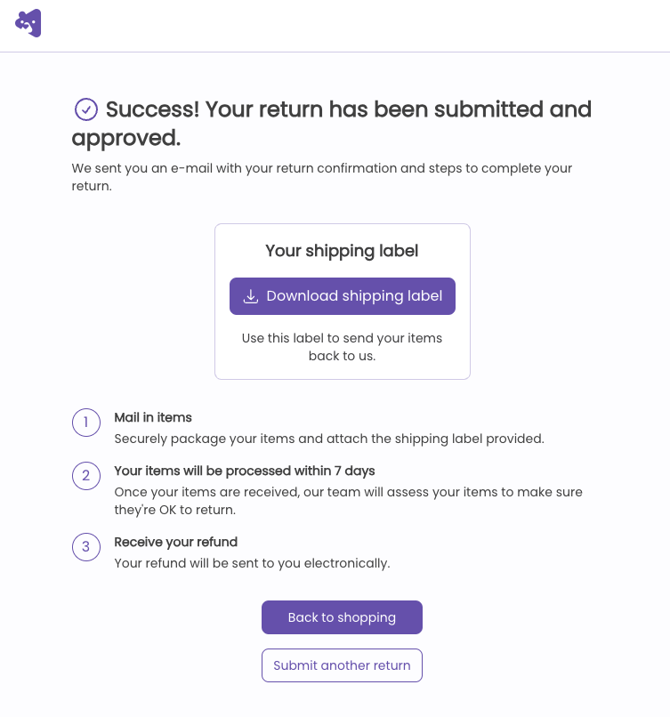
If all criteria was checked off on the Return Policy Checklist, the return will be automatically Approved. The confirmation page will display either a QR code or the option to download a shipping label, depending on the Return Service chosen in Step 3. An email containing the QR code or shipping label is sent to the customer as well.
Return for instant refund
|
Return by courier
|
Return by courier
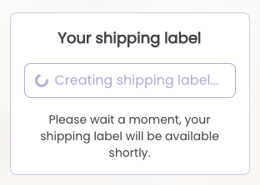
Sometimes the shipping label can take a moment to generate. In this case, the customer will be shown the following message until the shipping label is available for download:
Return is pending approval
If one or more of the criteria was not checked off on the Return Policy Checklist, the return will enter Pending status. The confirmation page will display a message indicating that the return has been sent for review:
Return for instant refund
|
Return by courier
|
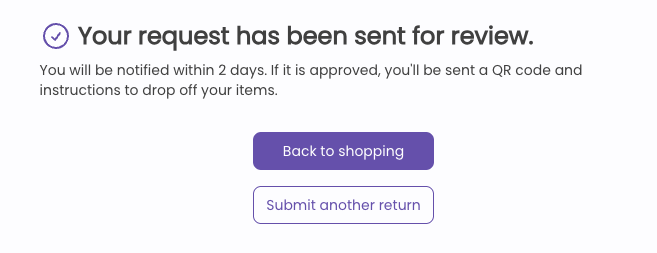
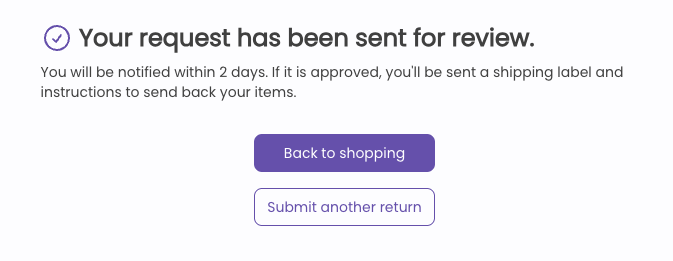
Pending returns require merchant approval within 2 days.
- If Approved, the customer will receive an email containing their QR code or shipping label and instructions for completing their return based on their selected Return Service.
- If Denied, the customer will receive an email informing them that their return request was denied.
For more information see Approve Requests.