
The Product Manufacturers tool is a critical part of your Logistics Compliance setup. This is where you create and manage a list of all the manufacturers who produce your goods. Providing accurate manufacturer information is a mandatory requirement for customs clearance when we ship your consolidated returns across international borders.
This list directly populates the 'Manufacturer' dropdown menu you see when editing items on the Product Data page, making it essential for resolving data issues and ensuring your fulfillments are not delayed.
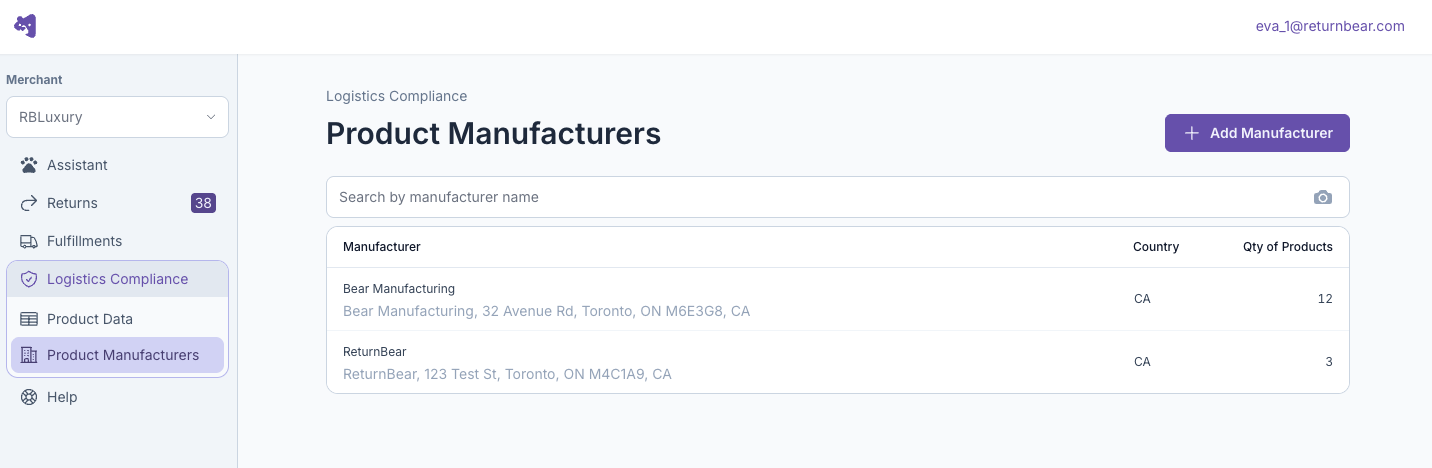
Accessing the Product Manufacturers Page
You can find the tool in your ReturnBear Admin by navigating to: Logistics Compliance > Product Manufacturers.
Here, you will see a list of all the manufacturers you have already added, along with a count of how many of your products are associated with each one.
How to Add a New Manufacturer
-
From the main Product Manufacturers page, click the + Add Manufacturer button in the top-right corner.
-
An "Add Manufacturer" window will appear. Fill in the complete details for the manufacturer. This includes:
-
Manufacturer Name
-
Address 1 & 2
-
City
-
Region (State/Province)
-
Country
-
ZIP / Postal Code
-
-
Manufacturer Identification Code (MID): The MID is a code used by customs brokers to identify a manufacturer. Based on the name and address you enter, our system will automatically suggest a MID. You can use the suggested code or enter a specific one if you already have it.
-
Click Save. The manufacturer will now be added to your list.
Assigning Products to a Manufacturer
Once a manufacturer is created, you need to associate your products with it. This is the quickest way to assign multiple products to a single manufacturer.
-
From the Product Manufacturers list, click on the name of the manufacturer you want to manage.
-
You will be taken to that manufacturer's detail page, which shows its address and a list of all products currently assigned to it.
-
Click the Edit Products button in the top-right corner.
-
A new window will open, listing all of your products. Use the search bar to find the specific products made by this manufacturer.
-
Click the + Add button to the right of each product you wish to associate with this manufacturer.
-
Once you are finished, click Close. The products will now be linked.
How to Archive a Manufacturer
If you no longer source products from a particular manufacturer, you can archive them. Archiving a manufacturer will disassociate all products from it and remove it from the active list.
-
Navigate to the manufacturer's detail page.
-
Click the Archive Manufacturer button.
-
Confirm the action. The manufacturer will now be archived.
By keeping your manufacturer list accurate and up-to-date, you ensure that all necessary data is ready for cross-border shipments, preventing delays and helping us get your inventory back to you as quickly as possible.